
IPTV App for Android TV and Google TV: US Setup Guide
Published · Updated · 8 min read · IPTVIVA
The best IPTV app for Android TV is one you install once and never have to configure: the IPTViva app installs on any Android TV or Google TV device in the US in about five minutes (from app.iptviva.com/tv.apk, or with Downloader and the code 7979931), and you sign in with your email and password. There's no M3U playlist to type, no TV guide link to add and no separate player like TiviMate or IPTV Smarters to buy. This guide covers every step, from checking your TV to fixing the rare install error.
In this guide
- Android TV or Google TV: does my TV run it?
- Install the IPTViva app for Android TV in 4 steps
- Allowing the install on Google TV
- First launch: what to set up
- Getting around with the remote
- Is your TV too slow? Choosing a box
- On an Android phone or tablet
- How to get the best picture
- Updating the app
- Troubleshooting
- FAQ
Android TV or Google TV: does my TV run it?
Google TV is Google's newer home screen, built on top of Android TV. For installing apps they work the same way, and the IPTViva app runs on both. The quickest test: if the Google Play Store is among your apps when you turn the TV on, you're good to go. To check the exact version, open Settings → System → About (or Settings → Device Preferences → About on older Android TV models) and look for "Android TV OS".
You'll usually find Android TV or Google TV on:
- TVs: Sony Bravia, TCL, Hisense (Google TV models), Philips and Sharp Android TV models.
- Streaming boxes and sticks: Google TV Streamer, Chromecast with Google TV, onn 4K Pro, Nvidia Shield TV and other Android TV boxes.
These run different systems, so this guide doesn't apply to them:
- Samsung (Tizen) and LG (webOS) TVs: follow the Samsung and LG smart TV guide.
- Amazon Fire TV Stick: follow the Fire TV Stick guide.
- Some Hisense TVs run VIDAA and some Philips TVs run Titan OS, not Android: check for the Play Store before you start.
Install the IPTViva app for Android TV in 4 steps
- Download the app. Open the TV or box's web browser and go to app.iptviva.com/tv.apk. Most Android TVs don't come with a browser; in that case, install the free Downloader app from Google Play, open it and type the code 7979931.
- Allow the install. Android asks for permission the first time an app installs something from outside Google Play. Approve it for the browser or for Downloader (details in the next section).
- Install and open IPTViva. Choose Install, then Open. You'll find it later in your apps row; you can move it to the front of the home screen.
- Sign in with your IPTViva email and password, or create an account in the app. If you're new, the free trial starts as soon as your account is ready.
That's the whole setup. Compare it with a typical player: install the app, type a long playlist address with the remote, add a guide link, wait for everything to load, then repeat it on every TV.
Allowing the install on Google TV
Where the permission lives depends on the device:
- Most Google TV devices: Settings → Apps → Security & restrictions → Unknown sources, then turn on Downloader (or the browser you used).
- Older Android TV models: Settings → Device Preferences → Security & restrictions → Unknown sources.
- Some devices, such as Chromecast with Google TV, hide the option until developer options are on: go to Settings → System → About, select Android TV OS build seven times until you see "You are now a developer", then go back to Unknown sources.
Only allow the app you used to download IPTViva, and turn the permission off again afterwards if you like: the app keeps working.
First launch: what to set up
- Pick your channel languages. The first time you sign in, the app asks which languages you watch and suggests some from your country. The channel list is then filtered to those languages, which keeps it short and makes it load quickly on a TV.
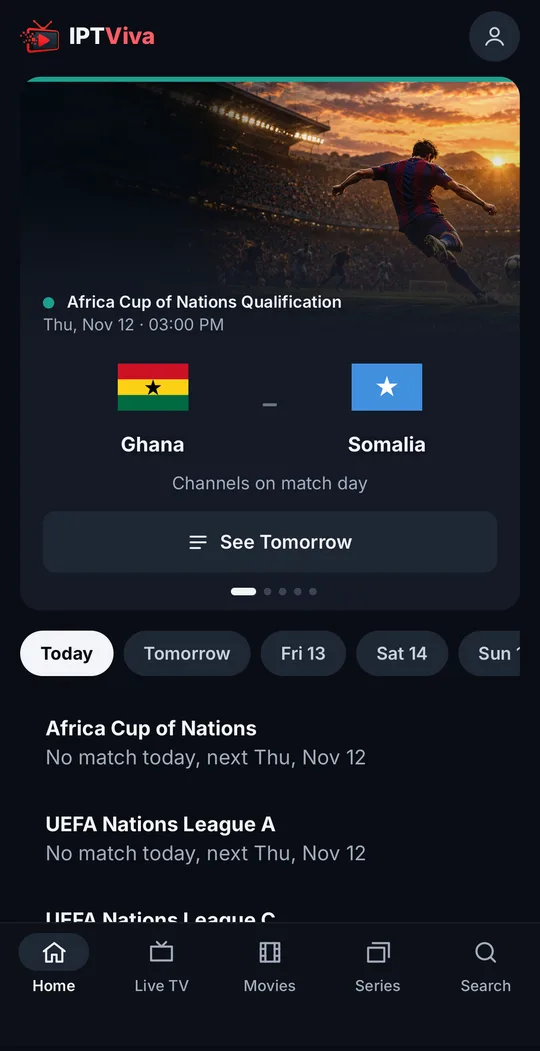
- Look at the Home screen. It opens on today's football matches, each with a channel that's working, followed by what's on now and later today.
- Add favorites. Mark the channels, films and series you watch most so they're one click away.
- Try the search. One search box covers channels, films and series.
Getting around with the remote
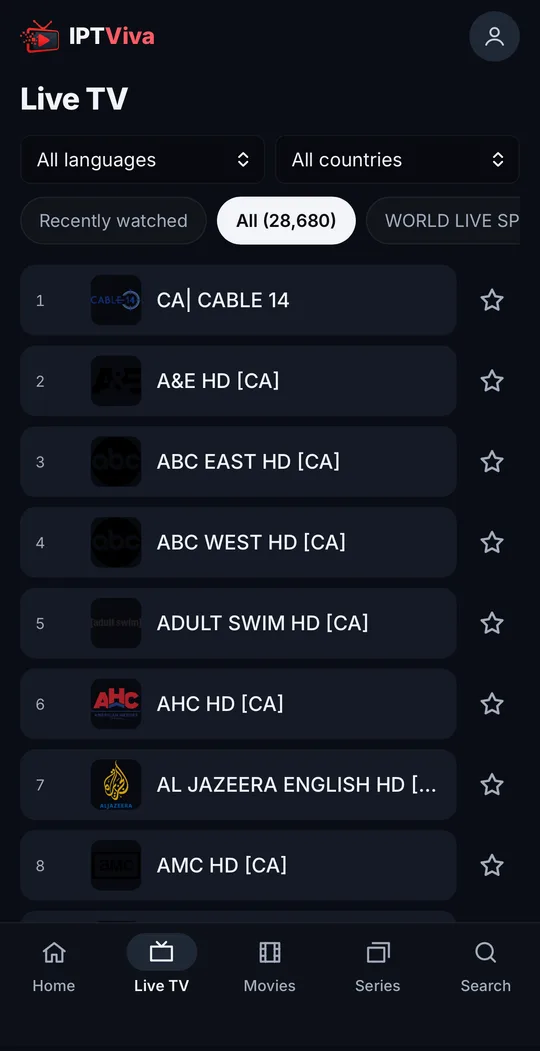
The app is built for a TV remote: use the arrows to move, the centre button to select and Back to go up a level. The Guide button shows what's on now and next, roughly 24 hours ahead.
Is your TV too slow? Choosing a box
Older or budget TVs often have slow processors and little memory, so menus lag and big channel lists load slowly. A streaming box is a cheap fix. Look for:
- At least 2 GB of RAM, so the app and the guide stay smooth.
- An Ethernet port (built in or via an adapter): the single best upgrade for live TV.
- 4K and HEVC decoding, if your TV is 4K.
- Recent Wi-Fi (Wi-Fi 5 or 6) if you can't run a cable.
In the US, the Google TV Streamer (with built-in Ethernet), the onn 4K Pro and the Nvidia Shield TV are popular picks. If you're comparing devices, our Fire TV Stick guide covers Amazon's sticks too.
On an Android phone or tablet
Open app.iptviva.com in Chrome and sign in. To open it with one tap, use Chrome's menu → Add to Home screen. It's the same account as on the TV, so your plan covers it; the Standard plan lets one screen watch at a time and Premium two (see pricing).
How to get the best picture
- Use an Ethernet cable to the TV or box if you can: Wi-Fi causes most dropouts.
- On Wi-Fi, use the 5 GHz band and keep the device close to the router.
- For 4K, plan on a steady 25 Mbps or more; HD needs around 10–15 Mbps. See how much internet speed IPTV needs.
- Restart the box now and then if it has been on for weeks, and keep some free storage: Settings → Apps → IPTViva → Clear cache frees space without signing you out.
Updating the app
When a new version is available, install it from the same place: app.iptviva.com/tv.apk or Downloader with the code 7979931. It installs over the old one. If the TV ever refuses ("App not installed"), uninstall the old version first, then install the new one and sign in again.
Troubleshooting
The TV blocks the install. Turn on Unknown sources for the browser or Downloader you used (see Allowing the install on Google TV).
Downloader doesn't find the code. Type 7979931 with no spaces, or enter the full address app.iptviva.com/tv.apk.
"App not installed". Usually not enough storage or an older version in the way: free some space or uninstall the old IPTViva, then try again.
I can't sign in. Check the email address for typos. If you've forgotten the password, use Forgot password in the app: a code arrives by email from support@iptviva.com.
It buffers or keeps loading. Go through our guide to fixing IPTV buffering. If it still happens, message us on WhatsApp from the contact page.
FAQ
Is IPTViva the best IPTV app for Android TV?
If you'd rather not set up a player and a playlist, it's the simplest option: one app with its own channels, films and series, today's matches on the Home screen and one search for everything. If you already have a playlist from another provider, a player such as TiviMate is the tool for that; IPTViva only plays its own catalogue.
Do I need TiviMate or IPTV Smarters Pro?
No. We no longer send M3U playlists or Xtream Codes logins, so those players aren't needed. We explain it in how our app subscription works.
Why isn't it on Google Play?
The app installs from our own server (app.iptviva.com). It's our own app, the same one as on the Fire TV Stick.
Does it work on Google TV Streamer and Chromecast with Google TV?
Yes. Use Downloader with the code 7979931, and on Chromecast with Google TV turn on developer options first if Unknown sources doesn't appear.
Can I use the same account on several devices?
Yes, with the same email and password everywhere. Standard allows one screen at a time and Premium two.
Does it have a TV guide?
Yes: what's on now and next on each channel, and about 24 hours ahead in the Guide. There's no catch-up or recording yet. More in the IPTViva app's TV guide.
Ready to watch without limits?
Start with a free trial, straight away. No commitment. Cancel any time before you choose a plan.
Free trial →